DeepMode Blogs | Blogs about AI character generation
How to Import Your Own LoRAs Into DeepMode
Published on: 2026/05/18

Learn how to import and use your own LoRAs inside DeepMode. This beginner-friendly guide explains LoRA importing, strengths, styles, and tips to improve your AI generations.
If you’ve been using DeepMode for a while, you’ve probably already seen how much LoRAs can change the final result of a generation.
Different LoRAs can affect realism, lighting, clothing styles, facial details, aesthetics, poses, camera feel, and overall visual direction. Some users use them to create cinematic scenes, while others use them for anime styles, fashion looks, fantasy concepts, or more specific visual themes.
Just last week, we've added the ability to import your own LoRAs directly into DeepMode.
At first, the feature can feel a little overwhelming, especially if you’ve never worked with LoRAs before. But once you understand the workflow, the process is actually pretty simple.
This guide will walk you through how to import and use your own LoRAs inside DeepMode.
What Is a LoRA?
A LoRA is a lightweight AI add-on trained on a specific style, concept, character, aesthetic, or visual behavior.
Instead of changing the entire AI model, LoRAs help guide the generation toward a certain look or direction.
For example, some LoRAs focus on:
• realistic photography
• anime aesthetics
• cinematic lighting
• outfits and fashion
• fantasy styles
• poses and expressions
• camera angles
• visual effects
Once imported into DeepMode, you can apply them directly to your generations.
How to Import Your Own LoRA
DeepMode still has it's own default LoRAs you can use. But if you want to explore more, you can add your own and its easy.
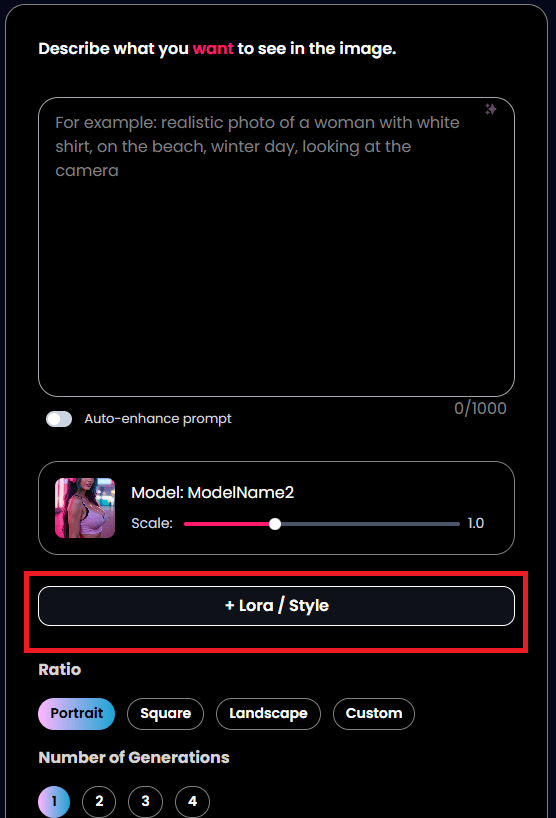
1. Inside DeepMode Playground, just go click the "LoRA/Style" button.
2. Click the "My LoRAs" tab to add your own LoRAs
Here, you will see all the LoRAs you imported in the platform.
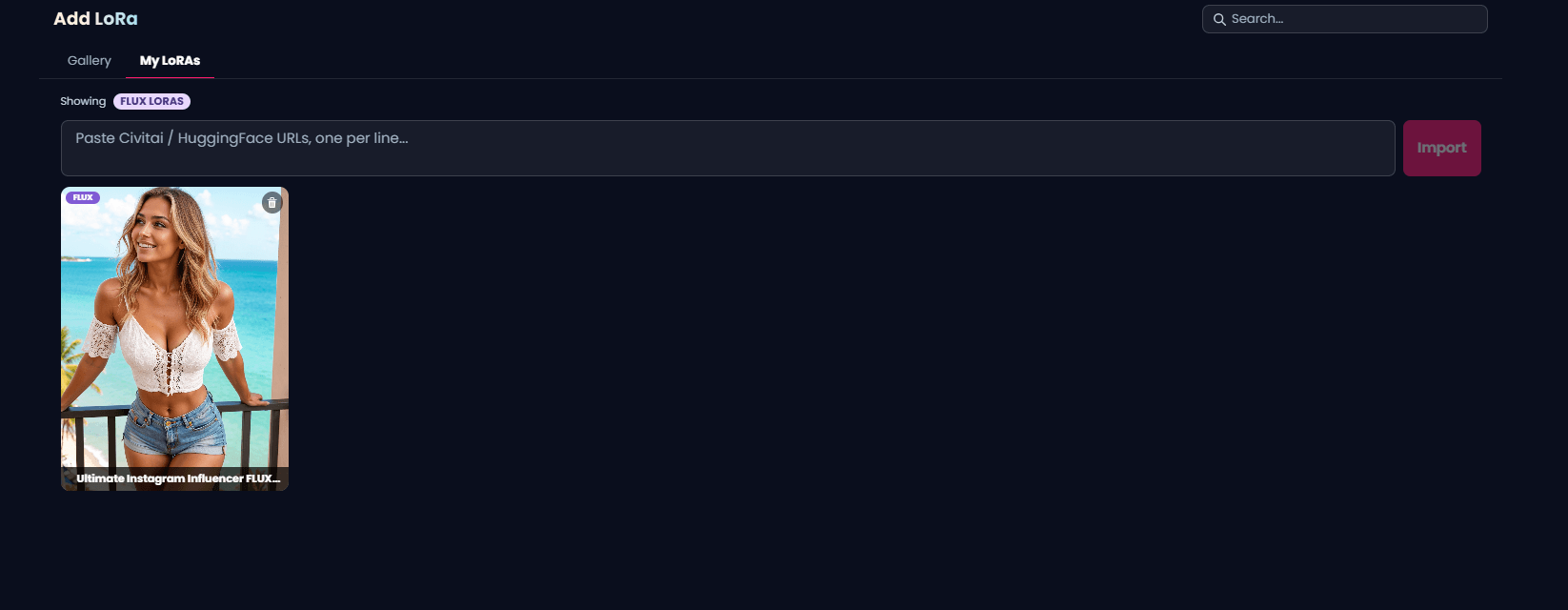
3. Paste the link of the LoRA you want to add.
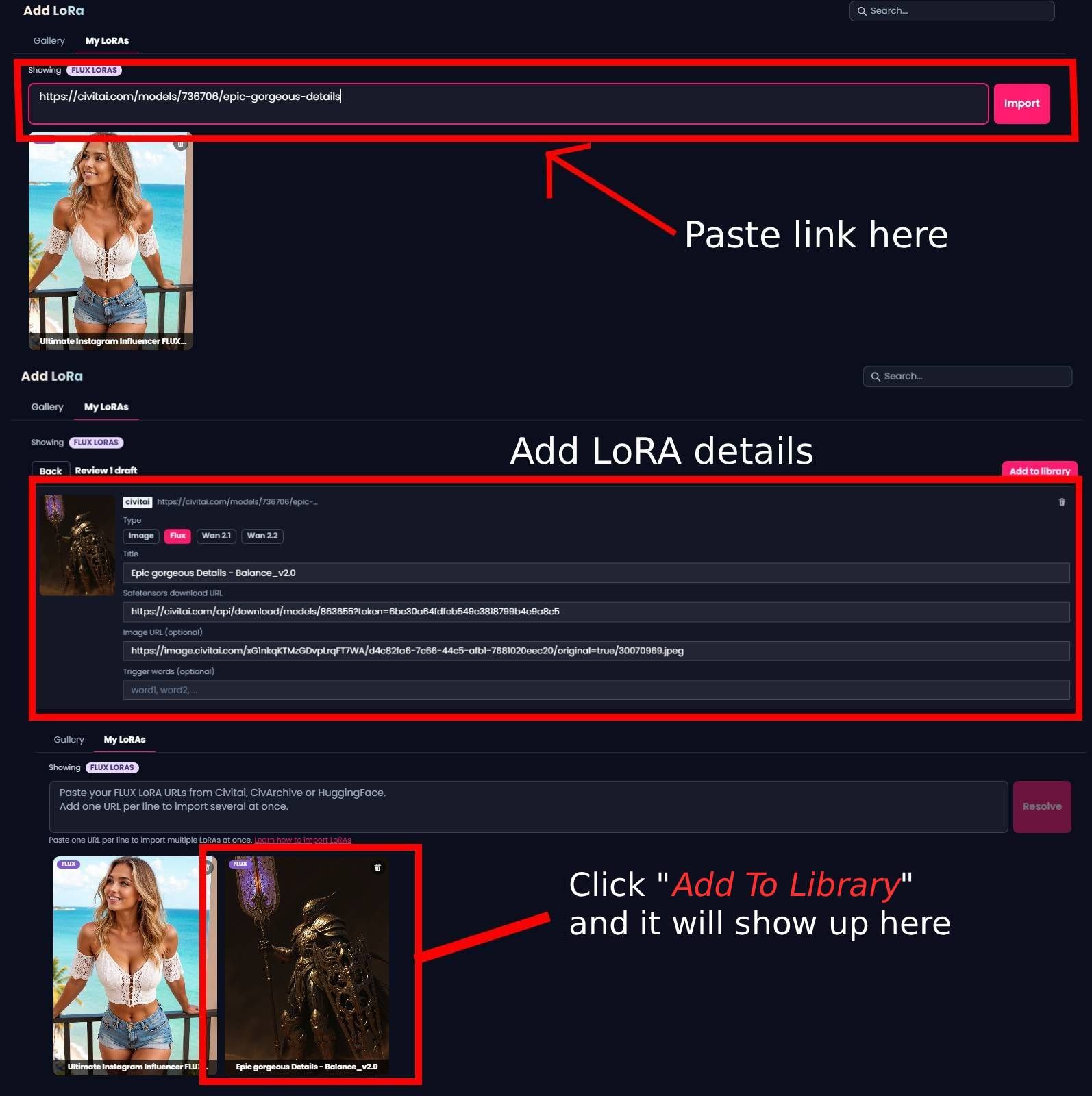 After adding the link, you can customize the details such as the Name, Preview and Trigger Words.
Hit Add To Library and DeepMode will automatically process and import the LoRA into your account.
Depending on the size of the LoRA, this can take a little time.
Once imported successfully, the LoRA will appear inside your available LoRA list and can be selected during generation.
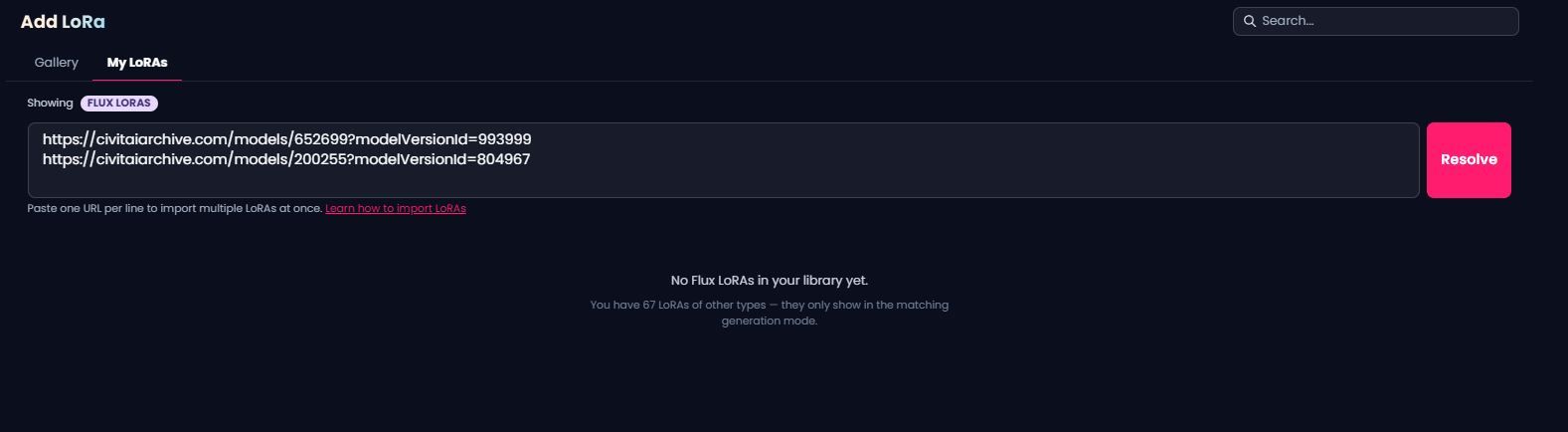
NOTE: You can import multiple LoRAs at the same time. Just add one URL per line.
Where to get LoRAs
If you’re wondering where people usually find LoRAs, there are already large communities and libraries where creators upload different styles, aesthetics, characters, and visual concepts.
Two sources you can use on DeepMode are:
● CivitAI
However, you should keep in mind that you cannot just paste any LoRA links and hope it will work! Each DeepMode model has its own LoRA compatibility. For example FLUX LoRAs are for FLUX models, while DeepMode Legacy models are compatible with WAN 2.1 and DeepMode prime is compatible with WAN 2.2 LoRAs.
Using Civit AI to get LoRAs
When searching LoRAs on CivitAI, you can always filter your search to make things easier.
Searching for FLUX LoRAs
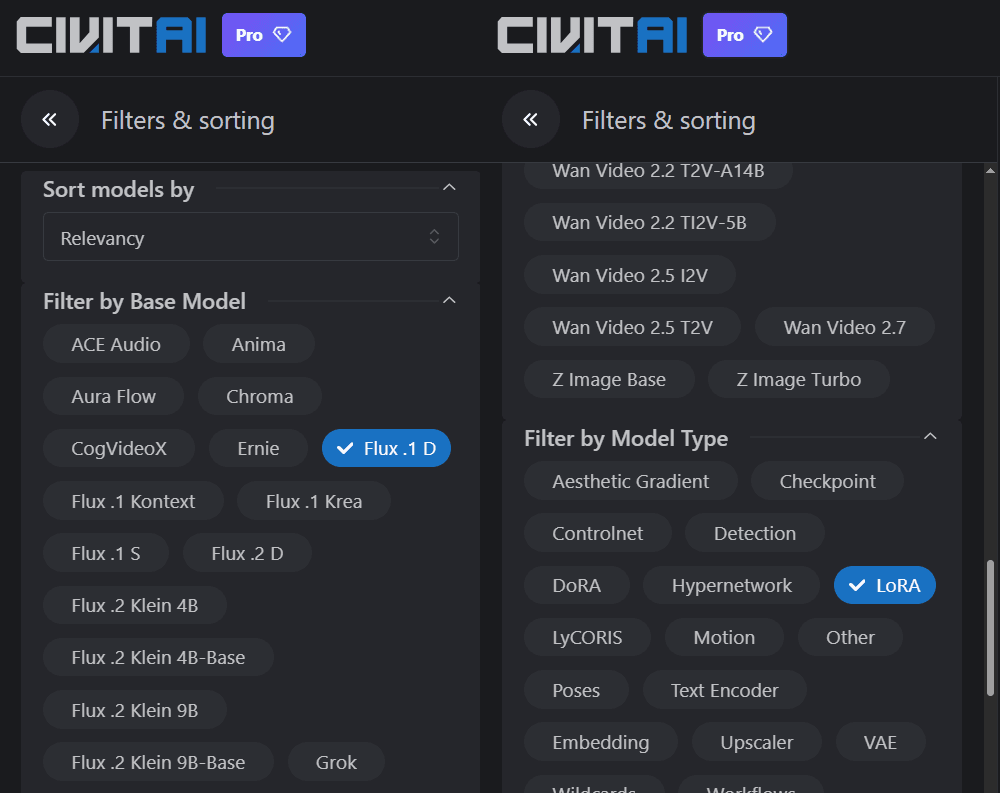
When searching for FLUX loras, you can toggle the FLUX 1.D under Base Model and toggle the LoRA under Model Type. This will help you ensure that all results are LoRAs for FLUX.
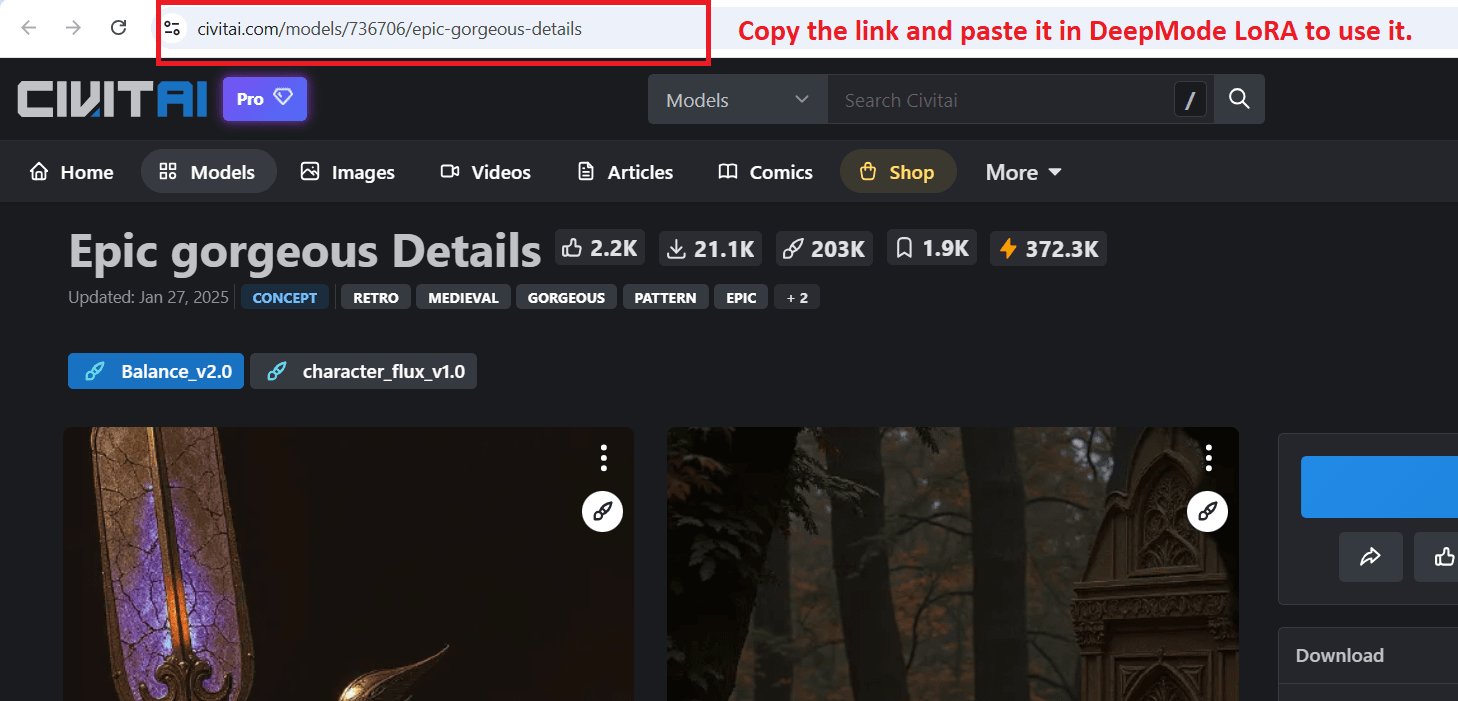
Once you find the LoRA you want to use, just simply copy the link and paste it on DeepMode FLUX LoRa
Searching for Legacy and Prime LoRAs
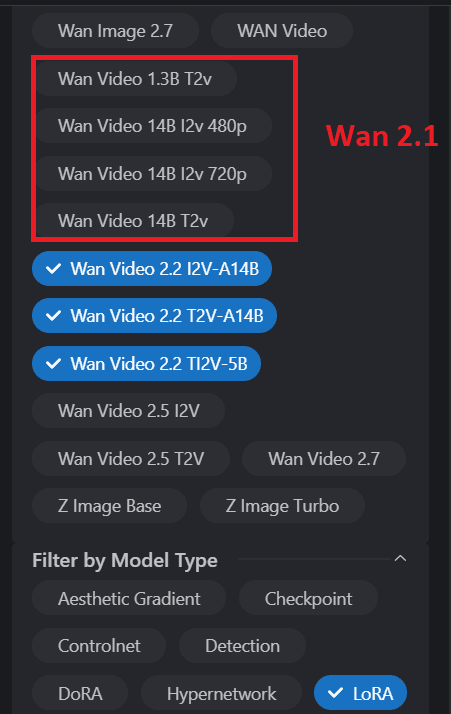
When it comes to Legacy, filter it by Wan Video and for Prime LoRas, use the Wan 2.2
Wan 2.2 is compatible with Prime and Wan 2.1 is compatible with Legacy
-
T2V is text to video
-
I2V is image to video
-
TI2V is text or image to video (you can use it for t2v and I2V)
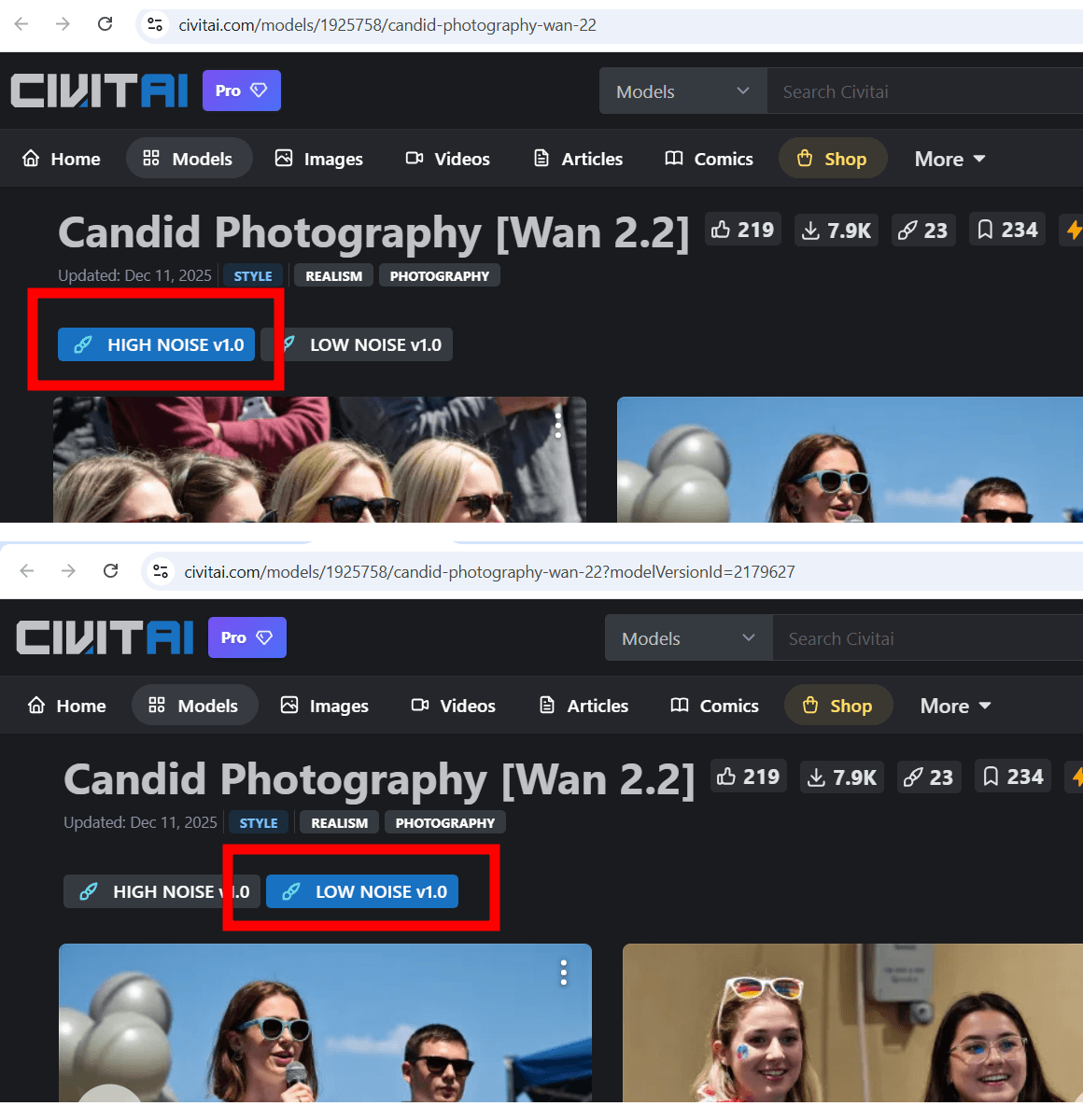
If you are searching for Prime LoRAs, be sure to copy and import both links of High and Low Noise of the LoRA .
If you want to know more about High and Low Noise, check out this blog
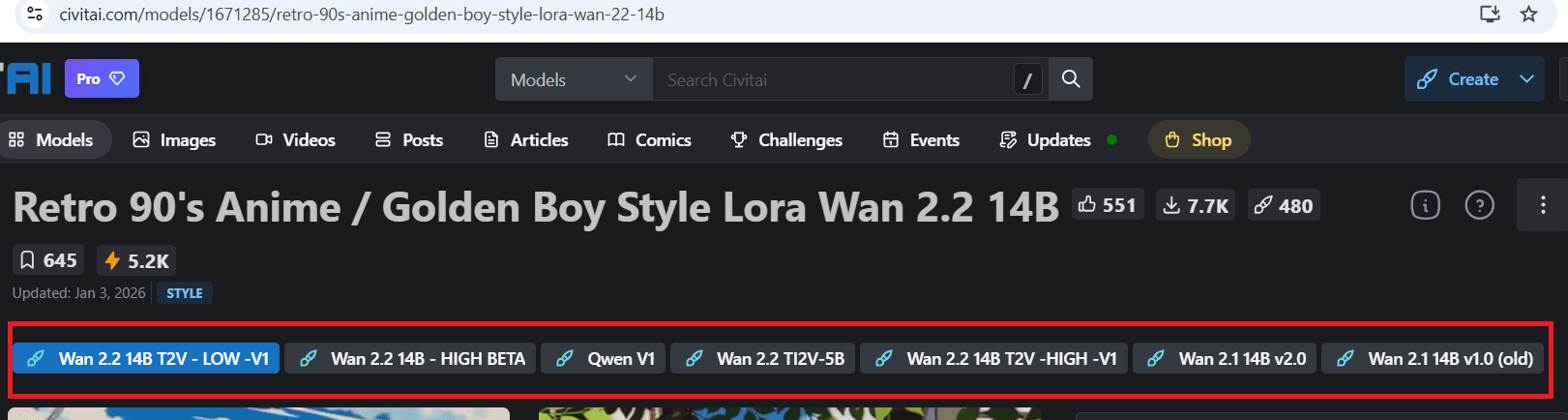
Also, just a side note: If you open a LoRA in CivitAI, you will sometimes see that there are different versions of that LoRA. There are I2V, T2V and even v1, v2 etc. (Some LoRAs also show their FLUX version there). In this sample, you can see that it also has its Wan 2.1 version, meaning you can click that and import the link for your Legacy model.
Using Hugging Face to get LoRAs
Hugging face is another platform where you can get LoRAs for DeepMode. It may be a lot less user friendly compared to CivitAI and overwhelming too for first time users! But rest assured that this guide will help you get familiar!
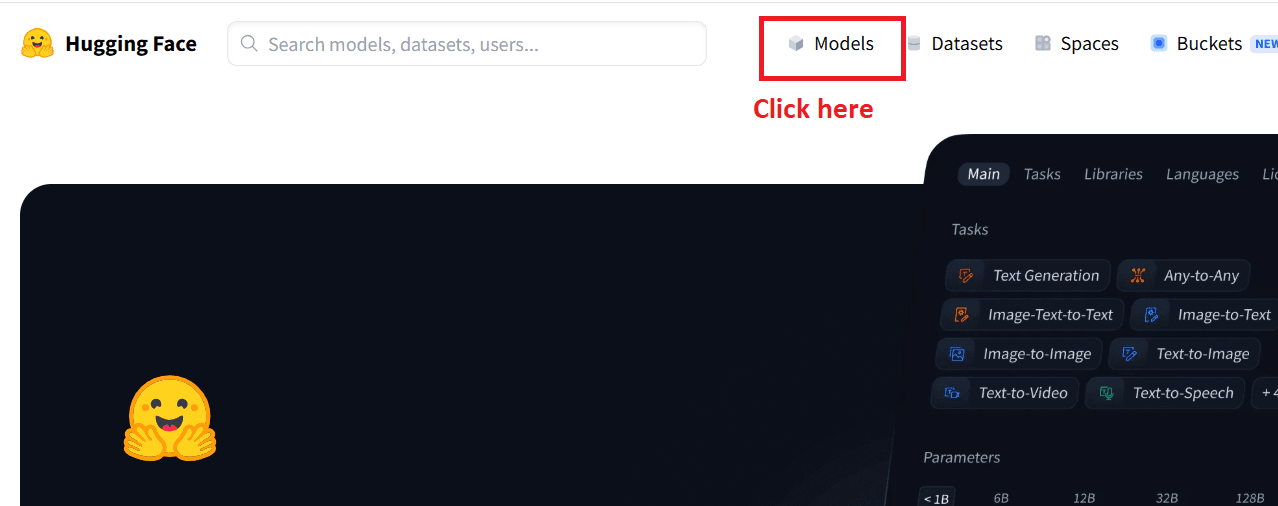
Visit Hugging Face website, and instead of searching directly in their search bar, click on the "Models" tab.
Here, you can search directly the model name, keywords or even the actual name of the LoRA if you have anything in mind.
• "Flux.1 Dev" for FLUX LoRAs
• "Wan 2.1" for Legacy
• "Wan 2.2" for Prime
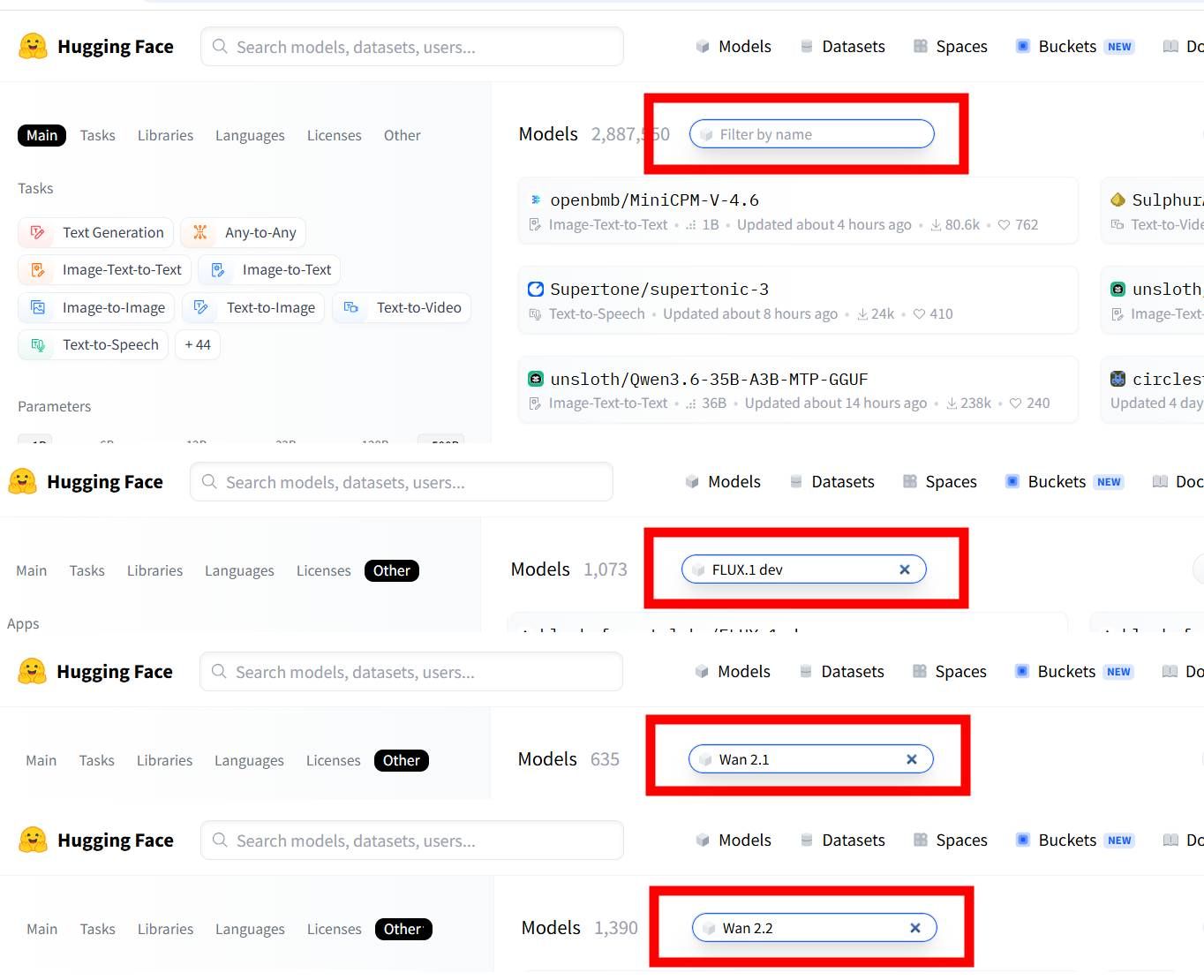
Keep in mind that whatever shows up here are not always LoRAs. Some are workflows, licenses and other stuff. So be sure to double check what you click and ensure it is indeed a LoRA you can import on DeepMode.
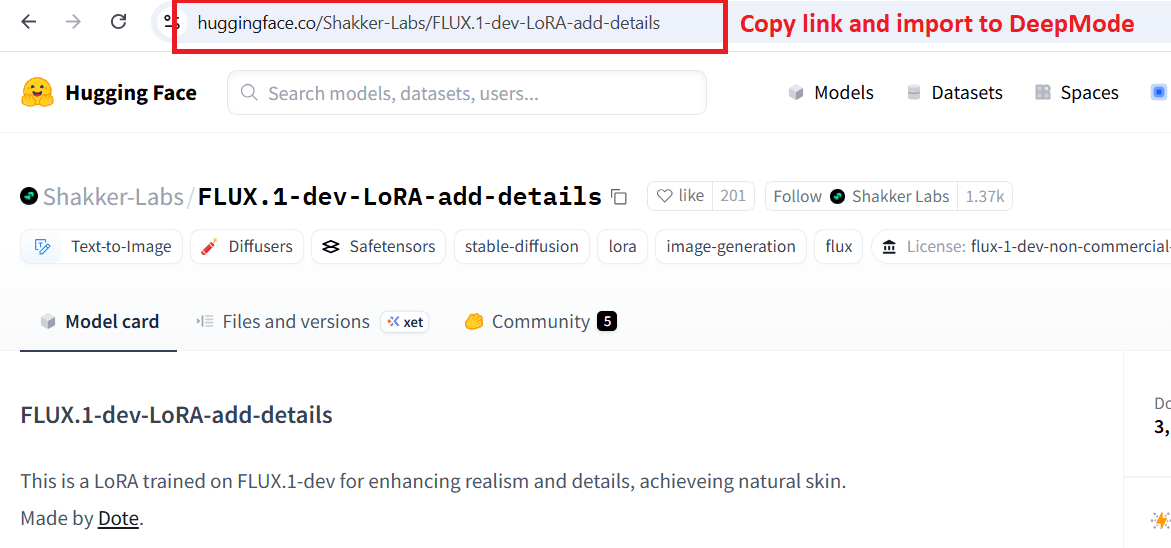
Side Note: You can open some team or creators on Hugging Face. They sometimes upload and has a compilations of LoRAs you can use too!
Using CivArchive to get LoRAs
CivArchive is a platform that has tons of LoRAs. If you can't find the LoRAs you want in CivitAI and Huggin Face, chances are it can be found here.
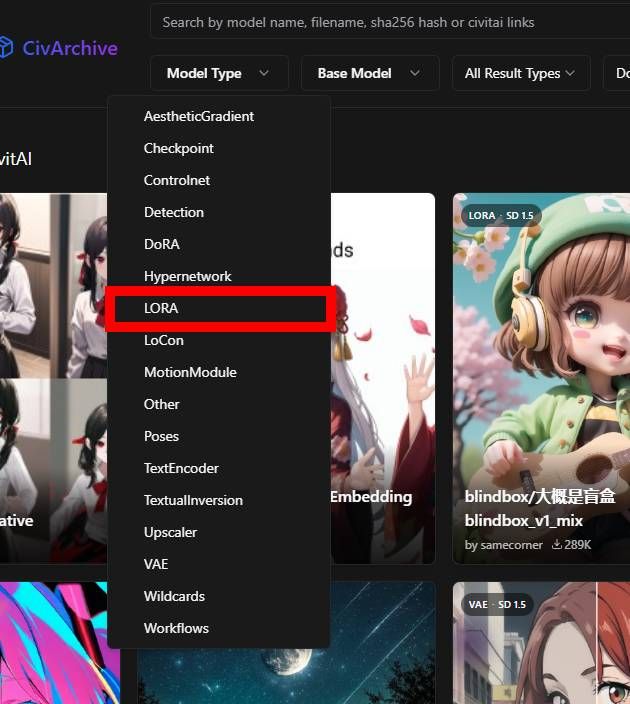
Visit their website CivArchive, be sure to filter the search before you search any LoRAs to easily find what you want.
Filter the Model Type to "LoRA"
This will tell the platform to only show you LoRAs in the results, not workflows, checkpoint etc.
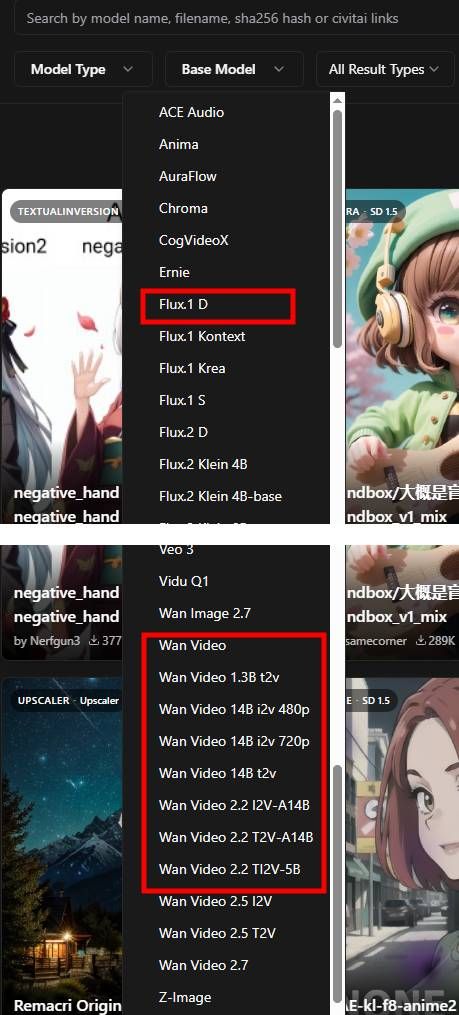
Next is to filter the Base Model
Base model will depends on what LoRA you want to import. As we mentioned:
• “Flux.1 Dev” for FLUX LoRAs
• “Wan 2.1” for Legacy
• “Wan 2.2” for Prime
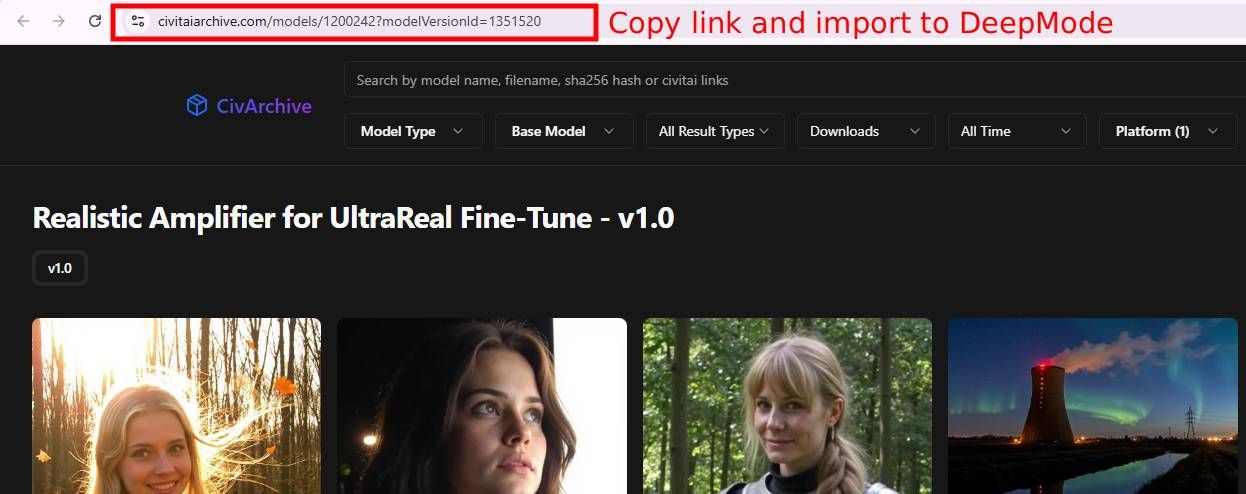
Copy the link and import to DeepMode
Once you find the LoRA you want to use, just simply copy the link and paste it on DeepMode FLUX LoRa
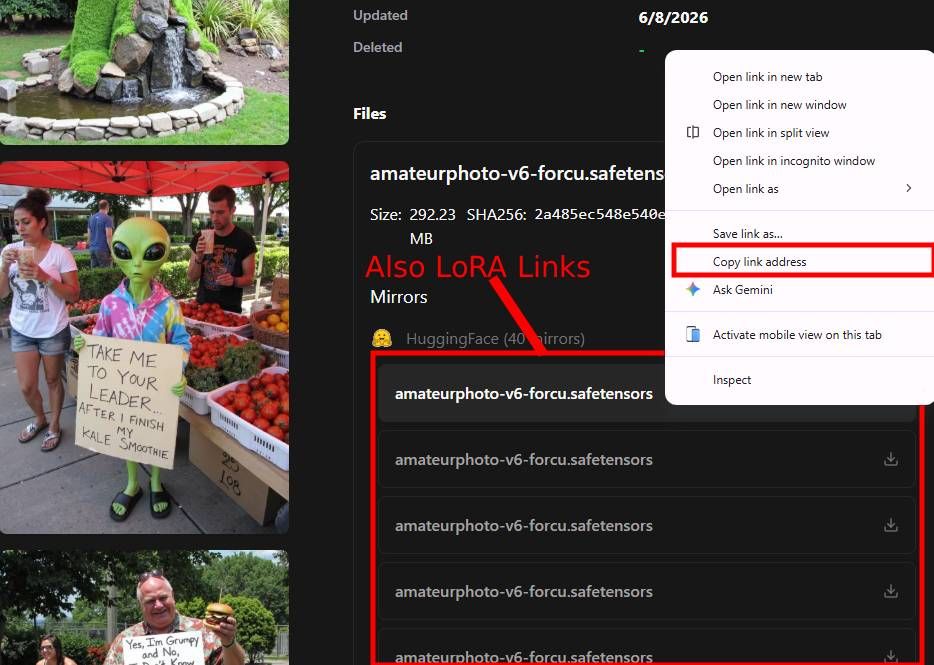
If you scroll down the page, you will also see this Mirror Section. It is the link of the same LoRA from other sources like HugginFace. You can also use that if you preferred it. Simply right click on it and copy the Link Address, you can then paste and import it on DeepMode
Start Simple
One of the biggest mistakes people make is stacking too many LoRAs together immediately.
When you’re still learning, it’s usually better to start with one LoRA, a simple prompt and a clear visual idea
This makes it much easier to understand what the LoRA is actually affecting.
Once you get more comfortable, you can start experimenting with combining different LoRAs, prompts, styles, and generation setups.
Don’t Worry If It Feels Confusing At First
A lot of users feel overwhelmed the first time they start using custom LoRAs.
That’s completely normal.
There are a lot of different styles, settings, weights, and workflows involved, especially if you’re new to AI generation.
But once you start importing and understand how it works, the process becomes much easier!
Eventually, choosing and using LoRAs becomes part of the normal creative workflow inside DeepMode.
The most important thing is not trying to master everything immediately. Try importing your own LoRAs inside DeepMode and start experimenting with different styles and generations.